This website is for the use of FCA authorised mortgage intermediaries only.
Application Help Centre
Keying an application right first time
The below information will assist you with inputting the application onto our Broker platform and includes information about common keying errors.
Following this guidance can also help reduce the likelihood of an incorrect system decline decision, and ensure that the application is progressed as quickly as possible.
Applicant
Broker dashboard
- For all new to bank customers, or any application not linked to an existing HSBC UK mortgage, please select ‘New customer’
- For Product switching, standalone Additional borrowing and Porting applications, please select ‘Existing customer’
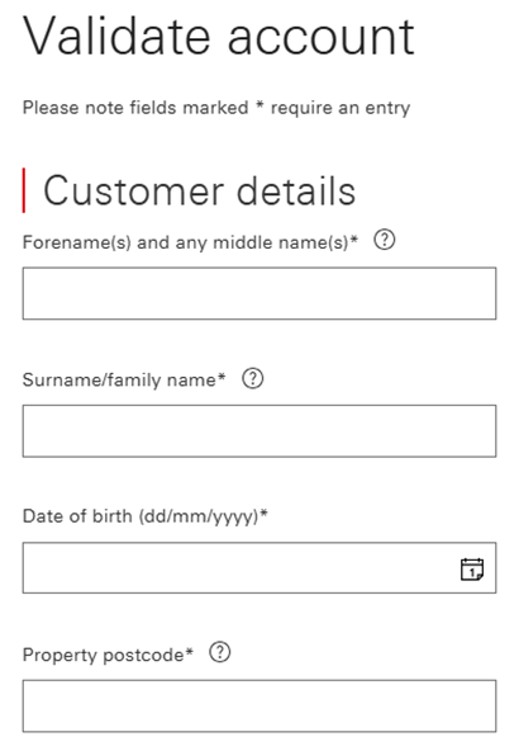
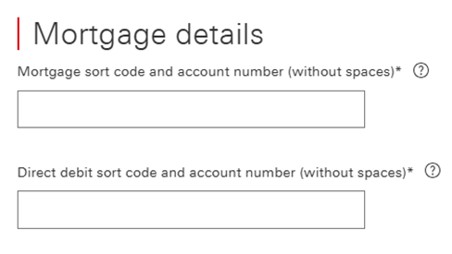
Input the existing customer details – details must exactly match those already held on HSBC UK system.
Input the existing customer mortgage details.
Ensure the correct type of application is selected from the start.
- If a Porting application is keyed as a Purchase application, the system doesn’t pull through their existing HSBC UK mortgage details, and the customers will not be able to transfer their existing HSBC UK mortgage to their new property.
- If keyed incorrectly, a Purchase application cannot be amended to a Porting application, and a new application may need to be submitted.
- For validation support, please contact our Broker Support Helpdesk on 0345 600 5847 Monday - Friday, 9am - 5pm.


Applicant details
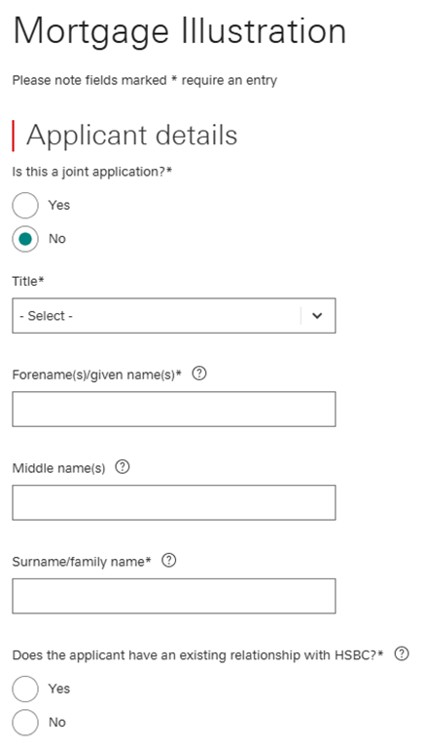
Once an application is submitted, you cannot add or remove parties. This would require a full rekey of the application.
- To receive an accurate decision, please ensure applicant details are keyed correctly in the mortgage illustration section.
- The customer’s full names, including middle names, should match the customer’s identification documents and evidential documents. Variances could lead to further documents being requested.
- During the DIP section of the application, you will have the opportunity to double check these details. Please take the time to ensure these are captured accurately.
- Any amendments to applicants’ details upon submission could lead to a change in the system decision.
- To avoid delays to the application, the residential address for both applicants must correspond with those on the customers payslips and other evidential documents.
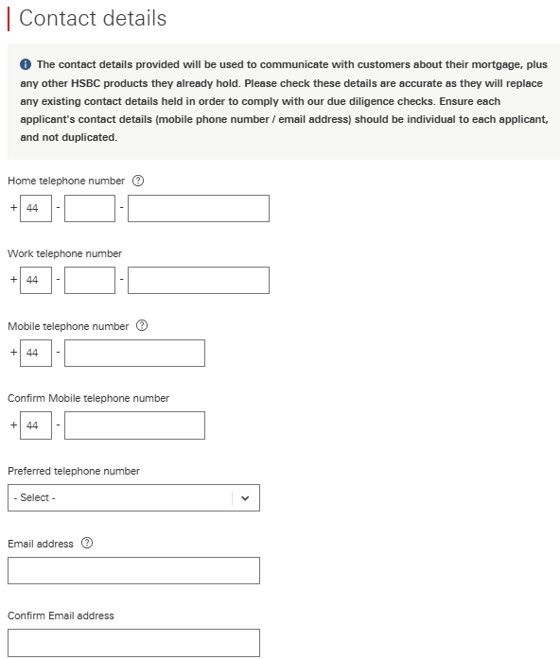
Contact details
- Please enter the correct details for both applicants.
- Do not enter your own details.
- It is not possible to input duplicate mobile telephone numbers or email addresses for joint applications. If the second applicant does not have their own mobile number or email address, please leave the second applicant’s contact information blank.
- It is important that the correct details are entered, as we send a password to the customer’s mobile number when the offer is issued.
- The Solicitors will also use this information to send their legal pack.
- Not completing the contact details correctly could lead to a data protection breach of the customer’s personal information.
Foreign National
Foreign Nationals Including EU / EEA / Swiss Nationals Resident in the UK
We will require them to provide a copy of their ‘share code’ so we can check their status on the GOV.UK website.
Please provide the sharecode upon submission which will also form part of the case packaging requests.
To obtain the share code, the customer will need to go onto www.gov.uk -> View and prove your immigration status: get a share code.
The customer will need the following information to hand:
- Details of the identity document they used when they applied to the scheme (i.e. passport, national identity card, or biometric residence card or permit
- Their date of birth
- Access to the mobile number or email address they used when they applied.
When the customer has provided the relevant information from the above list, they should follow the steps to ‘Get a share code to prove your status’ and click on the ‘Get share code’ function.
This page asks the customer ‘What do you need the share code for?’. The customer MUST select ‘something else’ for us to evidence their immigration status.
If they select to prove right to work or right to rent, we will only be able to confirm those rights and will not be able to see their settled or pre-settled status.
If the customer is happy to proceed, they can click on the ‘Create share code’ function shown at the bottom of the page.
This page confirms the share code which lasts for 30 days.
The code should be shared with us on the notes section of the application upon submission.
Application type and rates
Energy efficient homes and EPC
The Energy Efficient Home Cashback (EEHC) mortgage product rewards customers who purchase a more energy efficient home.
Cashback is received for Residential customers purchasing or remortgaging to HSBC UK with a home that has an Energy Performance Certificate (EPC) rating of A or B.
- If no EPC has been carried out, or the customer has not yet found a property, ‘Expired / Unknown’ needs to be selected.
- If the property is under construction, the broker must provide a Predicted Energy Assessment (PEA) certificate.
The PEA certificate will be provided by the developer (and should contain the address or proposed address of the property, if the PEA certificate does not cover the above, a Plot Reservation form will also be required).
- Only properties with EPC / PEA rating of A or B are eligible for EEHC rates (Purchase / Remortgage applications up to £2,000,000).
- Unencumbered properties, Additional borrowing, Product switches and Buy to let properties are not eligible for EEH rates.


Buyer types and rates - hints and tips
To ensure applications are keyed correctly and the appropriate rate is chosen, please review the below hints & tips.
If the application is incorrectly keyed, or the wrong rate selected, this can result in case delays or rekeying of cases.
Additional borrowing:
For Additional borrowing applications, please select ‘Existing Customer Borrowing More’ rates.
Porting:
For Porting customers who are also increasing their borrowing amount, please select ‘Home Mover’ rates.
First time buyers:
First time buyers are defined as: ‘At least one applicant has never previously owned a property in the UK or abroad’. If the applicant doesn’t meet this criteria, an alternative rate should be chosen.
Premier rates:
Only applicants who hold an HSBC Premier account are eligible for these rates. Once the case is at submission, the underwriter will check whether the applicants are eligible against HSBC internal systems.
Energy Efficient Homes Cashback (EEHC) rates:
See Energy efficient homes section.
International rates:
A non-UK resident in an approved country must select an International rate.
Premier / Tracker rates:
When keying the application, if only Premier / Tracker rates are showing, please review the selected incentives (e.g. Cashback / Fee Assisted). If the issue is not resolved, please contact our Broker Support helpdesk.
Remortgage applications - rate incentives
Products including cashback:
This will be instructed as General Panel Managed (the customer will need to select their own Solicitors firm from our panel and will pay the fees).
Products including Fee Assisted Legals:
This will be instructed as Fees Assisted and a firm will be allocated from our panel to act (the customer does not choose the Solicitors firm here).
Products with no incentives:
This will be instructed as General Panel Managed (so the customer will need to select their own Solicitors firm from our panel and will pay the fees).
Products with cashback and Fee Assisted Legals:
This would only apply to EEHC rates (so the property would need to fit the guidelines for an Energy Efficient rate) – this would be instructed as Fees Assisted and the Solicitors firm will be panelled out to act (the customer does not choose the Solicitors firm here).
Please note that any incentives are paid per application not per product.

Porting keyed as purchase
If a Porting application is keyed as a Purchase application, the system doesn’t pull through the customer’s existing HSBC UK mortgage details.
- Select ‘Existing customer’ from the broker dashboard.
- Details must be input and exactly match those already held on HSBC systems.
- If keyed incorrectly, a Purchase application cannot be amended to a Porting application and a new application will need to be submitted.
Product switching and Additional borrowing
We allow Product switch and Additional borrowing applications to take place at the same time. You will need to input these requests as two separate applications.
If the product rate selected on the Product switch and Additional borrowing application are the same, one fee is fully refundable. However, where the products are not the same, a booking fee applies to each fee-paying product.
You will need to contact our Broker Support helpdesk when one of the booking fees is eligible for a refund; the request must be made before the application completes.
We classify applications to be simultaneous when they are keyed within three working days of each other. Please ensure that booking fees are not capitalised if a refund is required.
If you are submitting a Product switch and an Additional borrowing application for the same customers, please be aware that if the Product switch application completes before the Additional borrowing decision has been given, your customer will be required to pay an early repayment charge if the Product switch application is subsequently cancelled.
Key points for refund of booking fee:
- Input as two separate applications – must be keyed within three working days of each other.
- The broker must select the same rate for both applications to be eligible for a refund of one of the fees.
Keying Option 1 (preferred):
- Booking fees paid up front on both Product switch and Additional borrowing applications.
- Broker to contact helpdesk to notify us that a refund is required immediately after the applications are submitted.
- A refund will be actioned on the Additional borrowing application.
Keying Option 2:
- Booking fee paid up front on Product switch application only and capitalised on the Additional borrowing.
- Broker to upload AAF (to the Additional borrowing application) immediately after the applications are submitted to request the Additional borrowing quote be amended to remove the fee.
Employment / income
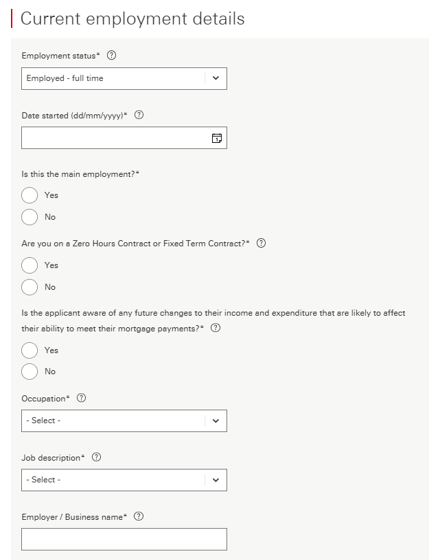
Current employment details
- Please select the employment status as accurately as possible.
- If the applicant’s start date is less than six months ago, a copy of the contract of employment may be required.
‘Are you on a Zero Hours contract or Fixed Term contract?’
- For Agency or Short / Fixed term contract workers, please select ‘Yes’ to this question.
‘Is the applicant aware of any future changes to their income and expenditure?’
- Please tick ‘Yes’ to this question if there are any expected changes to the customer’s income including redundancies, change of roles and maternity leave.
- For maternity leave, please also include future childcare costs and any changes to the applicant’s income / terms of work.
- Please input employer’s name as displayed on the payslip. Incorrect details can lead to further questions and delays in the application journey.
Employers address
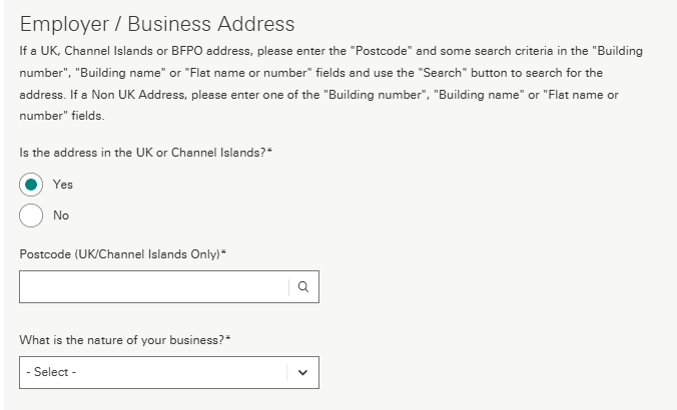
Please key the customer’s employer / business address as accurately as possible.
- As part of our underwriting checks, we undertake a sensibility check on all travel costs, and compare these to the employer’s address.
- If you are inputting an address which is head office or a site where the customer does not work from, please detail this at the end of the application in the notes section. This includes working from home, hybrid working, etc.
Self-employed - Limited Co director - shareholder
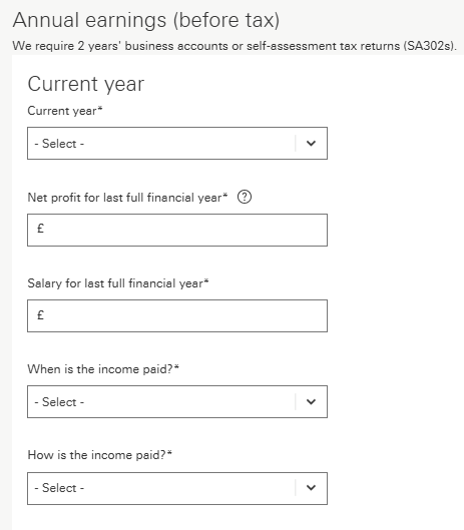
When completing employer details for Self-employed Limited Company Director / shareholder:
- Please ensure the Director’s salary is included in the correct field.
- If there is no Director’s salary, please input £0 for both the latest and previous years, as this can cause the DIP to decline if left blank.
- If the company is a trading company and there is a holding company involved, please provide their latest year’s finalised financial accounts along with the trading companies latest year’s finalised financial accounts.
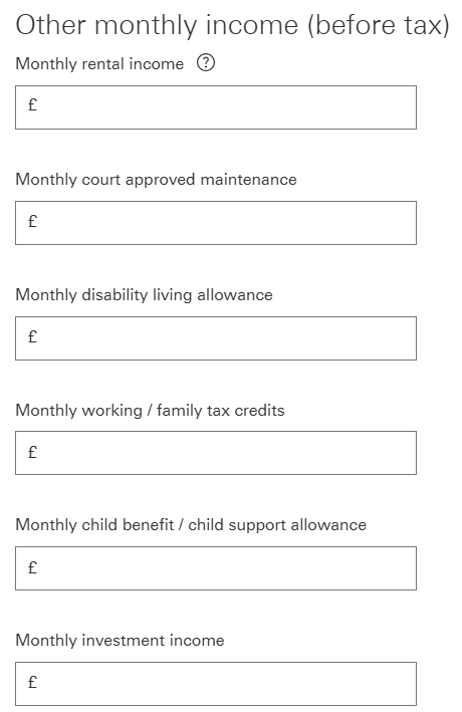
Other income
Benefit income
- Benefit income can only be used where these are evidenced to be assured and regular and will be received over the full term of the mortgage.
Rental income
- The monthly rental income keyed should be the gross rental income as evidenced by the SA100. Please note, even if you are not using Buy to let income, all associated costs still need to be included in the application.
- If the applicant is considered a Portfolio Landlord (including BTLs in holding companies), rental income cannot be used and must be excluded from affordability.
Retirement age
- Please complete both applicants’ anticipated retirement age.
- Where retirement age is declared as above 70, the system will automatically base affordability up to the age of 70 as a prepopulated retirement age.

Expenditure
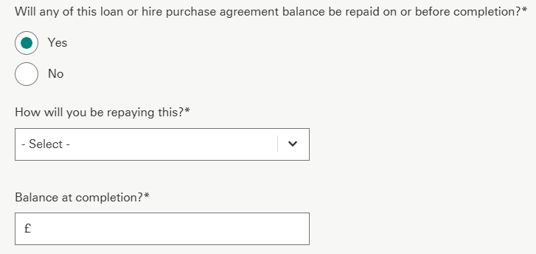
Financial commitments - debts to be repaid upon completion
Although the system allows you to record any debts which will be repaid upon completion, these still need to be included in the affordability calculator to provide an indicative maximum lend. This also includes inputting any credit cards which are repaid in full each month.
- Always include the lender’s name as accurately as possible to prevent delays in the application journey. Debts that will expire in less than six months can be excluded from the affordability calculation.
- Common errors - Even if existing debts are to be repaid upon completion, they still need to be included in the expenditure to provide an indicative maximum lending figure.
- The system shows fields which allow you to record any debts that will be repaid upon completion; however, they must still be included in the affordability assessment, including any credit cards that are repaid in full each month.
Exisiting Residential mortgages - how to key
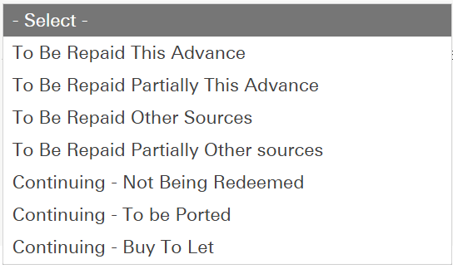
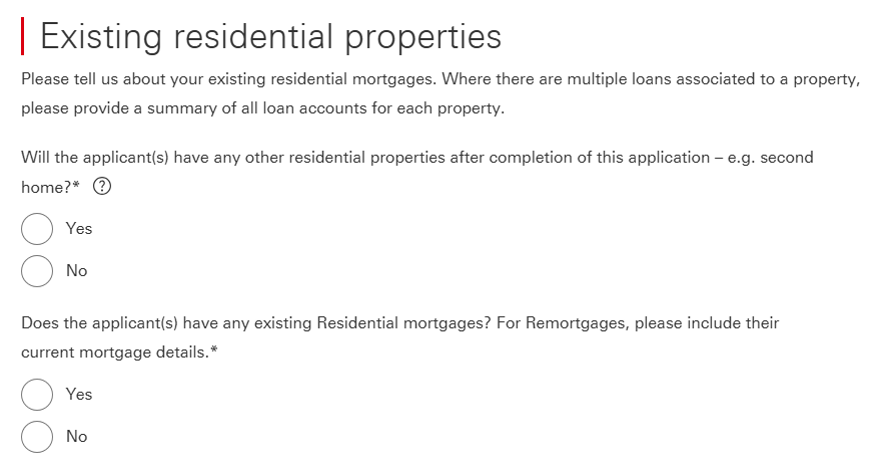
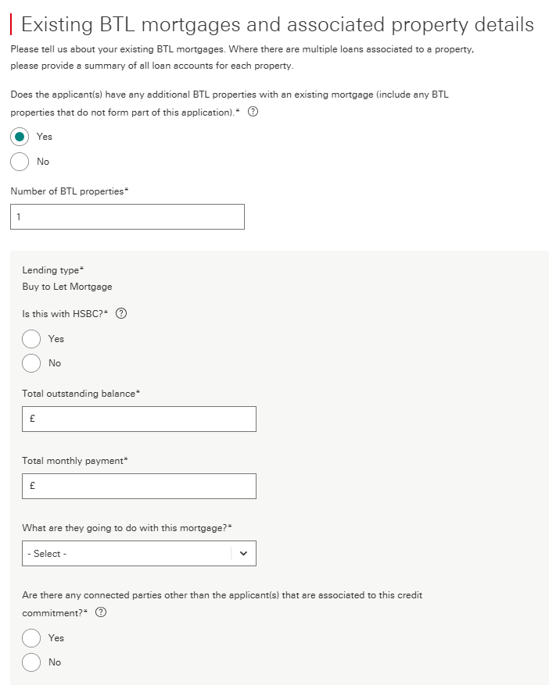
For Purchase and Porting applications, if ‘Yes’ is answered to the question ‘Does the applicants have any existing Residential mortgages?’, the application will continue to ask, ‘What are they going to do with this mortgage?’
If the applicants are repaying their existing mortgage and completing their HSBC UK mortgage simultaneously, the broker needs to select ‘To Be Repaid This Advance’.
Any other selection will result in the mortgage payment amount being retained as a commitment.
A common scenario where we see applications declining is where the external residential mortgage is being repaid upon completion and has been keyed as ‘To Be Repaid Other Sources’.
This should be keyed as ‘To Be Repaid This Advance’. For Remortgage applications, this section is automatically completed as ‘To Be Repaid This Advance’.
Where an applicant is repaying their existing mortgage simultaneously with completing the HSBC UK mortgage application, the answer to the question ‘What are they going to do with this mortgage?’ should be ‘To Be Repaid This Advance’.
Any other choice will result in the existing mortgage payment being included in expenditure.
The most common issue seen is the option ‘To Be Repaid Other Sources’ instead of ‘To Be Repaid This Advance’ being selected. Remortgage applications will automatically default to the option of ‘To Be Repaid This Advance’.

Second residential incorrectly keyed
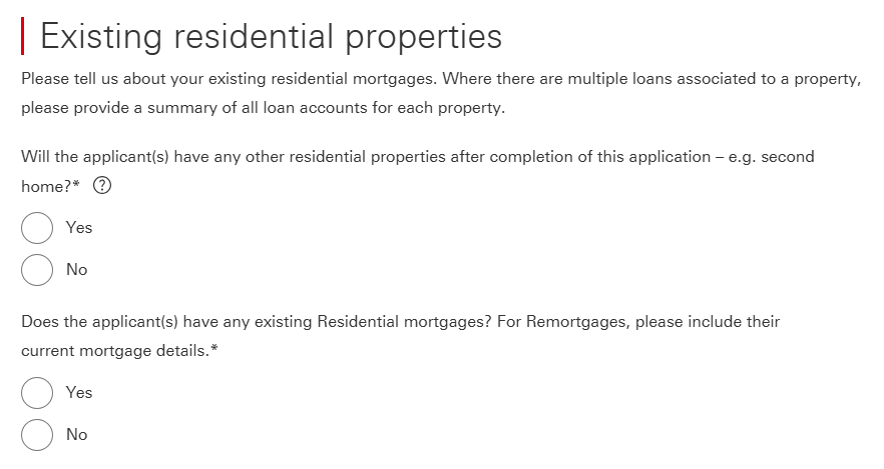
This only relates to second properties – retained / additional properties, not a remortgage.
If an application is incorrectly keyed as a second residential which will remain upon completion, the system will restrict the maximum LTV for the second property at 80%.
- On the Existing Residential Properties section of the application the system asks, ‘Does the applicant own any other residential properties?’
- This question relates to how many residential properties the applicants will own upon completion.
- For applications with properties in the background such as second homes, we need to include any background running costs for the second home within expenditure, even where the property will be occupied by other family members.
- These running costs include council tax, utilities, insurance. Mortgages should be included if they appear on the customer’s credit report, this includes where they are held jointly with siblings, children, etc.
- If an existing property is being sold or converted as part of the new purchase application, then the answer to the questions ‘Does the applicant(s) have any other residential properties remaining in the background – e.g. a second home?’ and ‘Does the applicant(s) have any existing Residential mortgages?’ should be ‘No’.
- Keying the application with a second residential property will restrict the maximum LTV to 80%.
- The 80% LTV restriction will also be applied if the ‘Residence type’ field is populated with Secondary Residence.

Household expenditure
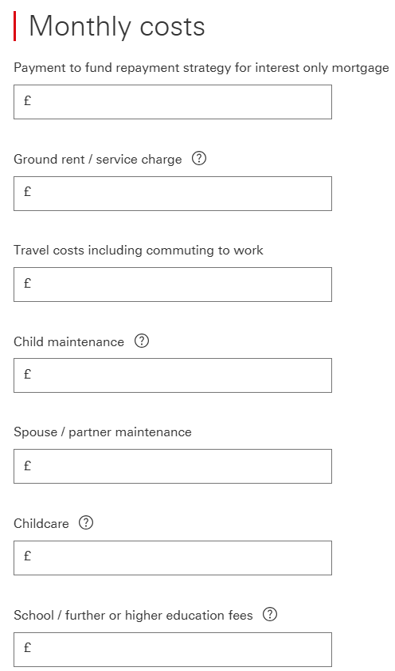
We use modelled expenditure based on the property to be mortgaged for many essential expenditure items, so these do not need to be separately input into the application. The following however need to be included:
- For all leasehold properties – ground rent / service charge
- Travel:
- Essential travel including any costs associated with the commute to work (e.g. fuel, parking, public transport fares)
- Costs associated with running a vehicle (e.g. insurance / tax / service / maintenance costs)
- Payslip deductions (e.g. season ticket loan / Cycle to Work / car lease / car parking)
- Childcare – as well as including any regular costs, please include any childcare vouchers
- School / Further or Higher Education fees need to be included, even where savings or family members will cover the cost.
Household expenditure - other
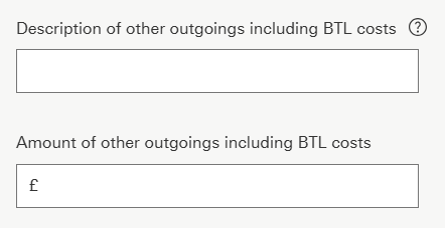
All other non-credit commitment costs which aren’t captured within the DIP need to be included in ‘Other outgoings’. The below list is not exhaustive, but does give an example of what may need to be included in the affordability assessment:
- Buy to let costs
- Second home costs
- Overseas property expenditure (including mortgages and running costs)
- Payslip deductions including employer loan, armed forces accommodation, Credit Union, etc.
- Guarantor mortgages. If the customer is guarantor for a mortgage they are not named on, they may still be liable for this cost.
Buy to let costs (BTL in the background)
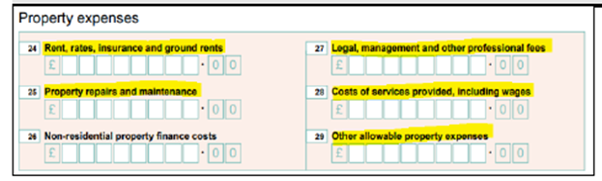
HSBC UK does not consider BTL self-financing and require all mortgages and running costs to be included even where the property is partially owned. These can be taken from the SA100 and added to the application:
- Rent, rates, insurance and ground rents
- Property repairs and maintenance
- Legal management and other professional fees
- Costs of services provided, including wages
- Other allowable property expenses
Where an SA100 has not been submitted as the property has been owned for less than 18 months, running costs such as utilities, insurance, council tax need to be included.
This is to cover periods where the property may be untenanted. If the BTLs are held in a Limited Company, the BTL expenditure for these properties does not need to be included.
Dependants
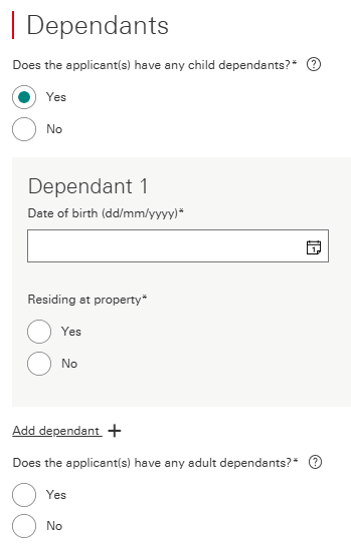
Please key the dependant’s date of birth as accurately as possible as this can cause delays to the application.
- Incorrectly keying the date of birth can lead to further questions by the underwriter regarding childcare costs.
- Anyone aged 17 or older at the time of the application submission, who lives in the property but is not on the mortgage application (excluding full-time students), will be required to sign a Letter of Consent.
Adult Dependants: An adult dependant is defined as any member of the applicant’s immediate family who is:
- Financially dependent on the applicant
- Over the age of 18
- Not included on the mortgage, but living with the applicant full time
Ad-hoc capital as repayment plan for Interest only mortgage included in expenditure
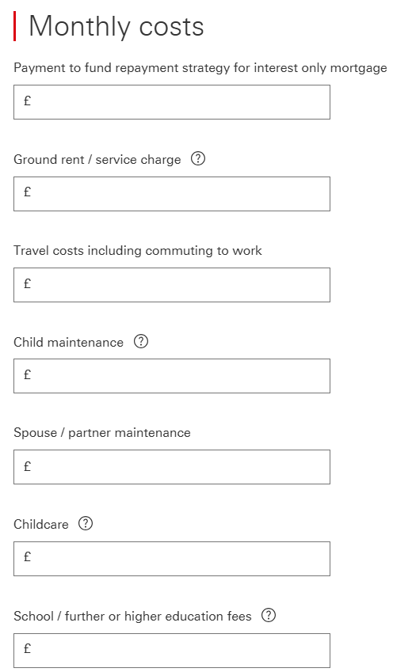
When the repayment plan for Interest Only is ad-hoc capital, this should be input into ‘Regular Outgoings’ as ‘Payment to fund repayment strategy for Interest Only mortgage’ so the system does not include this as an existing commitment.
If the Ad-hoc payment is entered under any other ‘Regular Outgoing’ – e.g. ‘Other Outgoings’ – the system will include this as an expenditure.
Lender name left blank
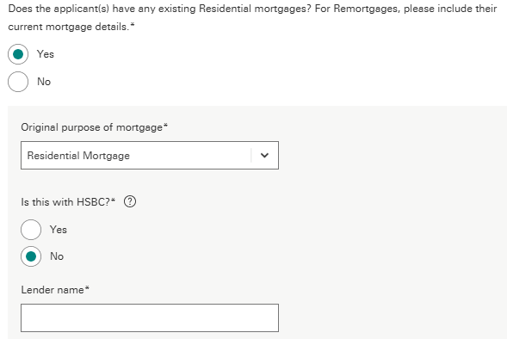
When keying existing external mortgages into the application, if the existing lenders name is left blank, this can cause the DIP to decline.
Property
Discounted properties
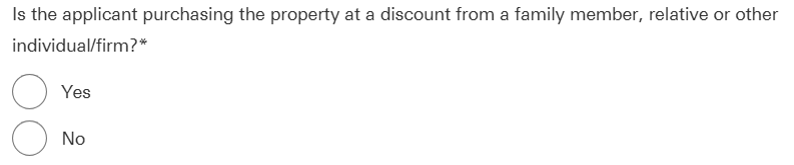
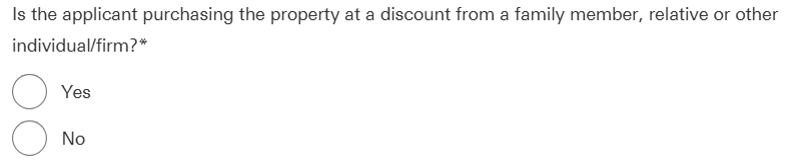
- If a discount has been applied to the property by family members, relatives or any other individuals / firm, please select ‘Yes’ to this question.
- Loan to value, for policy, is linked to the ‘actual’ purchase price being paid to purchase the property. The customer’s minimum deposit must be in line with criteria linked to this LTV.
- The correct way to key this type of application is the following:
- Submit the case based on the actual market value of the property. This way, the valuation is instructed on the correct value and the correct rate can be selected.
- Upload an Application Amendment Form to change the purchase price to reflect the discounted amount that the property is being purchased for.
Please note, this needs to remain within policy limits for loan to value (LTV) etc.
Deposit
Standard applications:
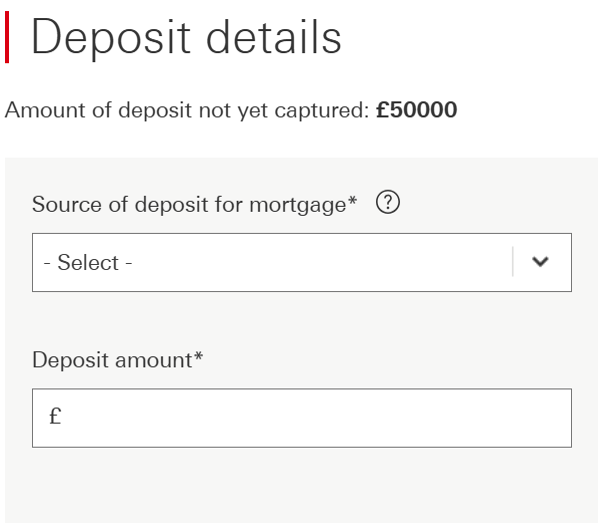
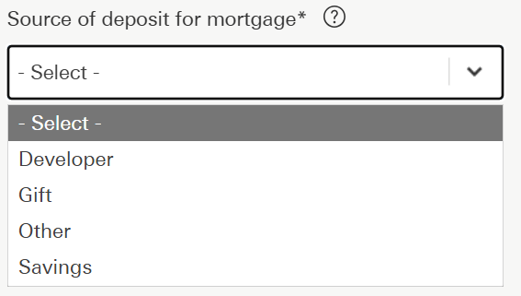
- When completing a Home mover application, where the deposit is ‘Equity’, please select ‘Other’.
Foreign national / Overseas applications:
- For Foreign national / Overseas applicants, if the deposit is coming from sale of property, it should be keyed as ‘Savings’.
- A common error is the deposit being keyed as ‘Other’ with a description of ‘sale of property’. This causes the DIP to decline for not meeting our Foreign national / Overseas deposit criteria.
- In the above scenario, please add notes to the case to confirm exactly where the source of deposit originates from.
Inherited properties
The application should be keyed as a Purchase where:
- The property is not registered in the applicant's name e.g. the property is still registered in the name of the deceased, and there may or may not be a mortgage in the name of the deceased
or
- The applicant is a joint owner, but they need to purchase the remaining share due to a ‘Tenants in common’ restriction in place.
Examples of Purchase applications are:
- Where there are multiple beneficiaries and the applicant would like to buy them out
- Where the applicant wants to settle the deceased’s mortgage instead of selling the property. Additional lending may be required if also buying out other beneficiaries.
Submitting the application
The purchase price is the amount required to acquire full ownership of the property, for example:
- Property value: £100,000
- The applicant owns 50% share of the property and 50% is owned by the other beneficiary, therefore £50,000 is required to buy them out. Purchase price is therefore £50,000.
The application should be keyed as Remortgage application where there is a continuing owner:
- The property is registered in the applicant’s name
or
- The applicant is a joint owner with the deceased, and the property was held as joint tenants rather than tenants in common.
Scottish property
Scottish properties should be processed in the same way as a discounted property by following the steps below:
- If a discount has been applied to the property by family members, relatives or any other individuals / firm, please select ‘Yes’ to this question.
- Loan to value, for policy, is linked to the ‘actual’ purchase price being paid to purchase the property. The customer’s minimum deposit must be in line with criteria linked to this LTV.
- The correct way to key this type of application is the following:
- Submit the case based on the actual market value of the property. This way, the valuation is instructed on the correct value and the correct rate can be selected.
- Upload an Application Amendment Form to change the purchase price to reflect the amount that the property is being purchased for. Please note, this needs to remain within policy limits for loan to value (LTV) etc.